Start with the Marketplace extension, verify the signed installer before you run it, connect the user-space MCP server, add your Loam API key, and open a project.
Node.js 22 or 24 LTSVS Code 1.93+Claude Code CLILoam API Key
Open one low-risk project, something you wouldn’t mind the team reading.
Ask the team for one review of it.
Read what they found and decide what to do about one finding.
Close the session, start a new one, and ask what you decided. The team should know.
When that works, connect GitHub and, if you have one, your own server. Each step and who says yes to it: what Loam can do today.
How you get in — what it costs
The honest shape of it.
Two questions every prospect asks before they care about anything else: how does this thing reach my machine, and what does it cost? Here is both, plainly.
Install
Install path
The recommended first step is the Loam VS Code extension from the Marketplace. It installs into your user profile, requires no admin rights, and is distributed through Microsoft's extension infrastructure.
VS Code MarketplaceThe cleanest, lowest-permission path. Install the Loam extension with no elevated rights. Its exact Marketplace identifier remains docpro.docpro-app; docpro is the legacy publisher ID retained so existing installations continue updating.
MCP serverLoam uses a local MCP server so Claude Code can communicate with the team. It runs in user space, registers under your profile, and installs no Windows service, kernel driver, or background telemetry agent.
Signed PowerShell installerFor Windows setup, the signed installer registers the MCP server and prerequisites. Download and inspect before executing; verify the Authenticode signature and SHA-256 hash published on the For IT page.
Your IDE keyFound in Settings. Keys start with dp_. Never put a key in a URL — the installer prompts for it.
Full step-by-step — download, verify the signature and hash, then run the file you checked — is in Install safely further down this page.
Costs & access
How does pricing work?
Loam costs USD $499 per user per month and remains in limited access. Charges from customer-controlled model-provider accounts are separate from the Loam platform price. What the price covers.
Loam platformUSD $499 per user per month. Limited access describes current onboarding availability. Request access.
Customer-controlled provider accountsClaude Code uses the developer’s configured Anthropic account for supported editor workflows. Anthropic bills that account separately under its terms. Any other workflow that uses a customer-controlled provider account is likewise billed separately from Loam.
Gemini image generationOptional. When enabled for Build Mode, it runs server-side with a Loam-administered provider credential. Customers do not configure a Gemini key.
Provider termsAny subscription or usage purchased directly from a provider sits outside Loam. Check the provider’s current terms and pricing for the account you use.
Loam is onboarding a small number of builders, researchers, and enterprise pilot teams. We are moving deliberately because persistent memory, source-code workflows, cloud provisioning, and AI team calls deserve careful review. Reach out and we will help you evaluate the fit.
Before you ask the team
Frequently asked questions.
The questions people ask most before they install. If yours isn't here, the team will answer it in your first session.
Loam is an AI development team available in VS Code and by phone. Four named collaborators plan, build, review, and deliver software. Call Meg at the front desk to order supported deliverables; a dev meeting includes a call to walk you through the plan. An account-scoped record carries decisions, findings, and open work forward. Current hosted infrastructure uses Loam-managed AWS and Cloudflare; provisioning in your own cloud account is planned and not available today.
Yes. Once your account and registered phone and email are set up, call Meg to order documents and research briefs, decks, spreadsheets, email drafts, web pages, websites, calendar files, callbacks, research papers about your application, or a dev meeting that plans a change. She verifies you and reads back what you will receive before you confirm.
The work arrives by email; a dev meeting includes a scheduled walkthrough call. You can share photos during a call, request revisions to delivered work, or email the team from your registered address. Application reviews require a new order. Code changes by phone are available: a verified caller confirms the change, the team makes it on the project connected through GitHub, and it goes online through the steps you approved for your own server or, if your project already publishes itself from GitHub, through that. Saved and live are reported separately. See what Loam can do today. See the phone workflow and current limits.
Copilot and Cursor are strong coding assistants with evolving memory features. Loam combines four role-specific AI working contexts, an account-scoped engineering record, user-started build and review workflows, synthesized-voice access, and supported infrastructure delivery.
They are role-specific AI working contexts, not human employees. Carl owns architecture and risk, Diana interface quality, Anthony implementation, and Abish QA and evidence. Their images and voices are synthesized. See the responsibilities and disclosure on the team page.
Each session can add account-scoped, project-tagged records on a secure server. The next session does not reload the whole archive; it assembles a prioritized working set of relevant decisions, preferences, corrections, findings, and open work. Older detail stays indexed and one recall away. See the evidence for the architecture.
Project Context is loaded whenever the team opens a repository. It carries the project's structure, decisions, preferences, and prior work into the next session so the team does not start cold.
CLAUDE.md can document a project. Loam carries a working memory of the project across sessions.
CLAUDE.md documents instructions for a repository. Loam adds a delivery workflow, role ownership, review gates, phone coordination, and an account-scoped engineering record. They can be used together.
For Loam-managed hosting, Loam administrators can provision an AWS Lightsail instance, static IP, firewall rules, Cloudflare DNS, and an SSL certificate, then return the live URL. Current hosted infrastructure uses Loam-managed AWS and Cloudflare accounts. Provisioning in your own cloud account is planned and not available today. Publishing to your own server, one you already have, is available now in Settings, under Servers (what Loam can do today).
Loam costs USD $499 per user per month and remains in limited access. Charges from customer-controlled model-provider accounts are separate from the Loam platform price. Supported Claude Code workflows use the developer's configured Anthropic account, and that provider bills its usage separately. Gemini image generation uses a Loam-managed server-side key; customers do not configure or pay for a Gemini key. Contact Loam to request access.
Loam is built on Anthropic's Claude. It is an independent product and is not affiliated with, endorsed by, or sponsored by Anthropic.
Loam runs inside VS Code on Windows. The automated installer script is Windows-only at this point. macOS is under development.
The system
What you actually install.
Two things are installed locally: the Loam VS Code extension and a user-space MCP server. Memory and audio capabilities run through Loam’s hosted service; they are not local modules installed on your machine.
Installed locally
Loam VS Code extension
The Marketplace extension provides the full Loam workspace and compact companion sidebar inside VS Code. It installs in your user profile and does not require administrator rights.
Marketplace identityThe listing is Loam, while the exact legacy identifier remains docpro.docpro-app so existing installations continue updating.
Local surfaceThe extension adds workspace pages and a compact sidebar used to open supported sessions and workflows.
User-profile installVS Code installs the extension under your user profile through Microsoft’s extension infrastructure.
No service or driverThe extension does not install a Windows service, kernel driver, or background telemetry agent.
This is the recommended, least-privileged install path.
Installed locally
User-space MCP server
The MCP process connects Claude Code to Loam. It runs locally in user space under your profile; it is not a cloud module or a Windows service.
User-space processRuns under your user account and uses no kernel driver or Loam Windows service.
Local registrationThe installer registers docpro-proxy in the Claude MCP configuration under your profile.
Outbound connectionThe local process connects to Loam over HTTPS for enabled workflows; nothing is installed as an inbound listener.
Inspectable setupThe signed PowerShell path can register the MCP server and prerequisites after you download, inspect, and verify it.
The account-scoped engineering record and supported audio workflows remain hosted service capabilities; they are not additional local installs.
Loam 5.5.0
Open Loam. Pick up the thread.
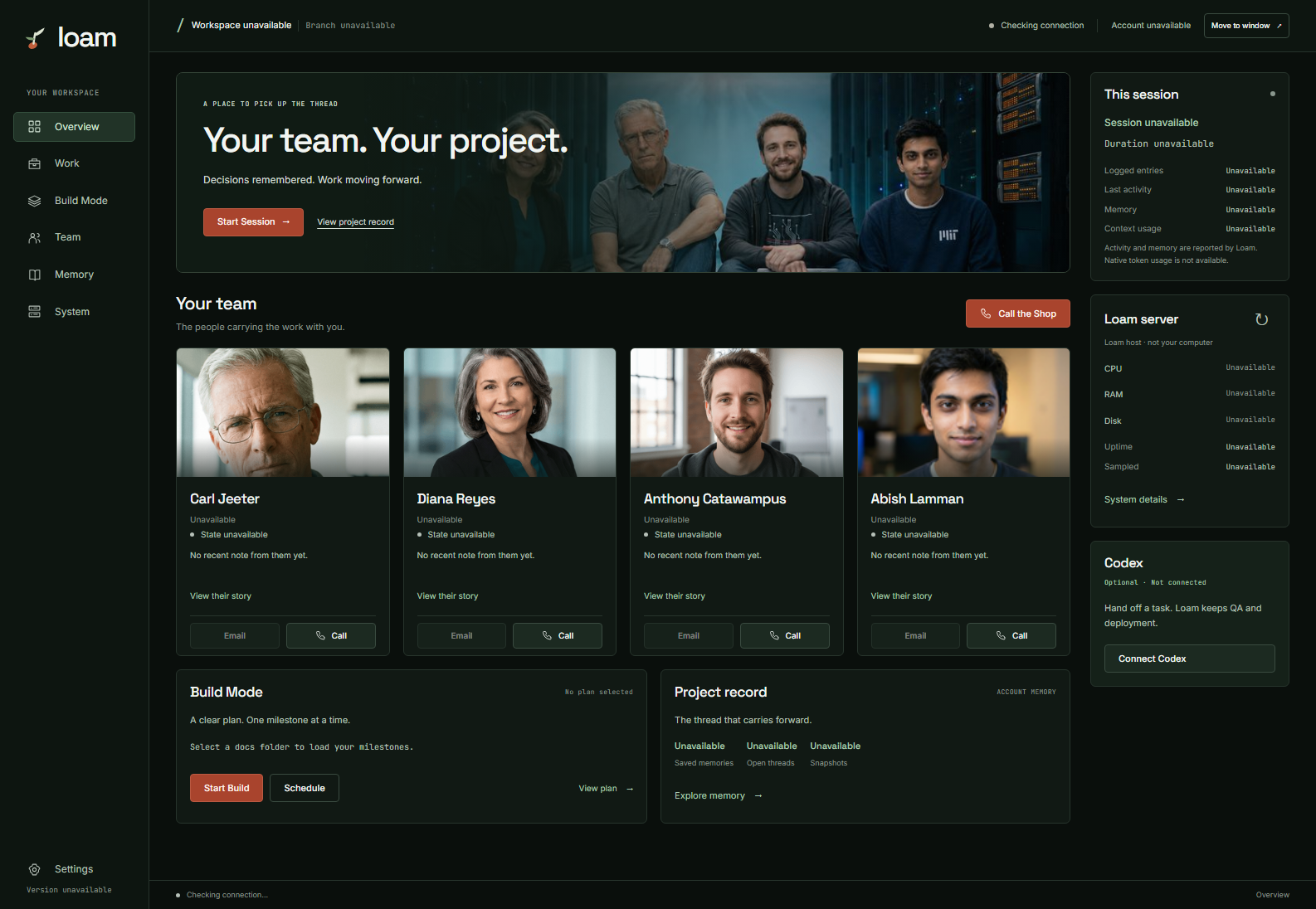
Click the Loam icon in the activity bar, then Open Loam. Save your Server URL and API key in Settings. Choose Start Session to begin a conversation, or Build Mode to follow a milestone plan. The workspace opens in its own window beside your editor; a compact sidebar stays in the activity bar.
The 5.5.0 workspace, captured before an account was connected. Readings that have nothing to report say Unavailable. Open the full-size image.
The work has a place.
Start a session. Follow the plan in Build Mode. Reviews, debugging, recordings and settings are each a page away instead of a stack of panels.
The team is in the room.
Read a member’s story, see how the week has gone for them, email or call any of them, or Call the Shop for the whole team at once.
Nothing on the screen is invented.
States come from the notes each member wrote. Counts come from your record. Server readings say when they were taken. Anything not reported says Unavailable.
Halfway through a session you can hand one task to Codex. Loam writes the assignment, with the context, the boundaries and what done has to prove. Codex builds it and brings back the commit, the evidence and anything it could not resolve. Loam reviews that work the way it reviews its own and keeps deployment. You can also just keep working with Loam.
Before you start, install and sign in to the Codex extension for VS Code, open a project you have added to Loam, and start a Loam session.
1. Connect on purpose.
Choose Connect Codex on the Codex card in your Loam workspace. If you have more than one Loam project, pick this one. Loam asks before installing or updating the small helper it needs in your Windows profile, then opens a new Codex conversation beside you. Updating Loam never does any of this on its own.
2. Send it any word.
Type any word in the Codex tab and send it. Codex and your Loam chat confirm the connection, and the card on your Overview says Connected. It stays connected for this Loam session. When you start a new Loam session, choose Connect Codex again.
3. Hand over one task.
Ask Loam in your chat to hand Codex a task, or choose Hand off a task on the Codex card. Write the task, check its boundaries, and choose Send to Codex. The card shows your latest task as it goes, and says so if Codex stops before finishing it. Letting Codex pick up follow-on work inside a plan you already approved is a separate switch. Pause or disconnect any time from the same place.
Your history stays yours. The helper keeps the tasks, pairings and receipts under %LOCALAPPDATA%\Loam\Collaboration. That history is not encrypted by Loam and is not removed by disconnecting or by deleting a hosted account. Removing it is its own step in the uninstall script.
Where the work lives
Every folder becomes a project.
Open a folder in VS Code and Loam treats it as a project. Your records stay inside your account, tagged to the project they came from, and what the team learns on one project comes with them to the next.
Project memory
The record carries architecture decisions, conventions, corrections, and open work across every workspace you sign into. A fix the team worked out for one client becomes the recipe for the next one. Nothing crosses into another customer’s account.
Session log
Learning-active sessions can add selected entries to the project record. The next session opens with a prioritized working set; older detail remains available through recall.
Team continuity
Carl, Diana, Anthony, and Abish keep stable role contracts across the project. When the relevant decision is in the session’s working set or returned through recall, they can identify a contradiction instead of quietly accepting it.
Before you install
What you need, and where your data goes.
The standard Loam setup installs two user-space pieces: a VS Code extension and an MCP server. No system service, no kernel driver, no background telemetry agent. Optional Codex collaboration adds a separately approved user-profile helper and scheduled task. Here is what to have ready.
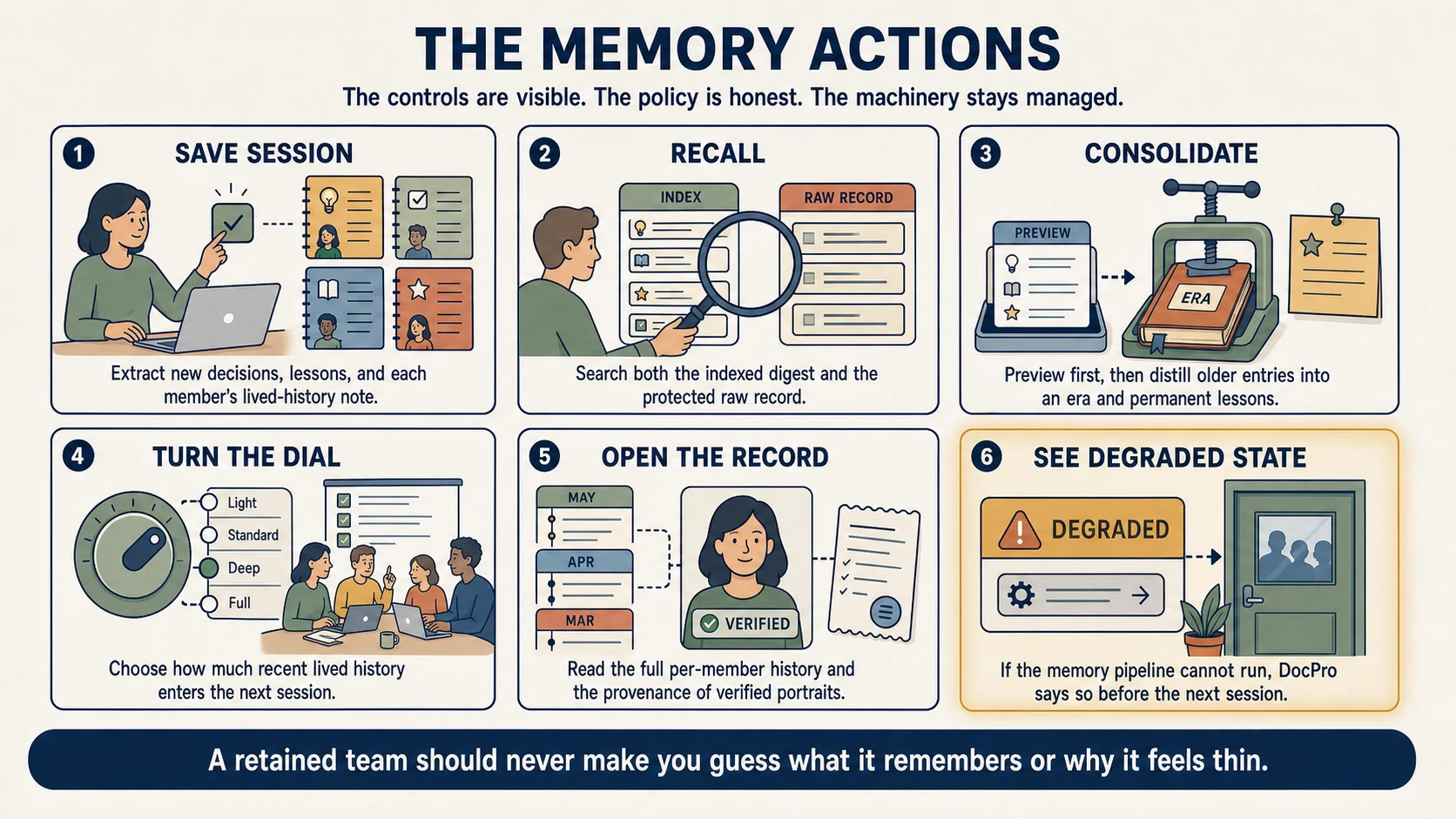
Inspect. Look at what the team actually holds about your work.
Recall. Pull older detail on demand instead of carrying all of it by default.
Tune. The Dial sets how much recent lived history enters a session — a depth and cost control.
Consolidate. Fold older indexed items into era summaries and durable lessons without deleting the source.
Reset or delete. Reset one team member, clear a project, or delete the live account database record. Server-stored generated audio and managed infrastructure follow the separate cleanup boundaries documented below.
PlatformWindows today. The automated installer script is Windows-only at this point; macOS is under development.
VS CodeVersion 1.93 or later, with the Claude Code CLI available.
Loam API keyYour IDE key from Settings. Keys start with dp_. The installer prompts for it — never put a key in a URL.
Marketplace pathThe VS Code extension installs from the Marketplace with no elevated permissions.
What gets installedThe VS Code extension (the controls) and the Loam MCP server (the bridge to the team). Both run in user space.
Where your data goesSession memory is field-encrypted at rest and isolated from other customer accounts. Loam does not use customer content to train Loam-owned models; provider retention and training behavior follows the provider’s API terms and the account configuration used for that workflow. See Security and For IT.
Install safely
Two ways in — the clean one first.
The lowest-friction, lowest-permission path is the VS Code Marketplace. The MCP server installer is signed and inspectable; the full command comes after the safety explanation, not before it.
Recommended
VS Code Marketplace
The cleanest path for most users and the right one for managed or locked-down environments — no elevated permissions, signed and distributed through Microsoft's extension infrastructure.
In VS Code on Windows, press Ctrl+Shift+X and paste docpro.docpro-app into the search box — that identifier is exact. The listing still uses the legacy docpro publisher ID so existing installs keep updating. Click Install, restart VS Code, open the Loam sidebar, choose Open Loam, and paste your API key on the Settings page. On first run, the extension guides you through MCP server setup.
Locked-down environments: Whether Marketplace installation is allowed depends on your organization’s policy. For AppLocker, ThreatLocker, Intune, or WDAC, see Loam for IT.
Inspectable script
PowerShell installer
For environments that prefer the script, it pulls prerequisites and configures the MCP server. It is signed and inspectable — download it, read it, verify the signature and hash, then run it.
First, download the script without executing it, and open it in any editor:
The installer is Authenticode-signed by Toast2IT, LLC (OV code-signing certificate, valid through April 2027, timestamped by DigiCert). Confirm the signature is Valid:
Then compare the SHA-256 hash against the published value. The signature establishes who produced the script; the hash proves the bytes that reached you are the bytes we serve.
Get-FileHash docpro-install.ps1 -Algorithm SHA256
Expected SHA-256 — the hash should match exactly:
1bc8a61f9ce4c801d32694bfef6e92b9603c43a391ea2be544d66dd0292d1ea0
What it does not do: Loam installs no Windows service, no kernel driver, and no background telemetry agent. Everything runs as a user-space process.
What the script may add: a plugin tree under %USERPROFILE%\.docpro; entries in %USERPROFILE%\.claude.json and %USERPROFILE%\.claude\settings.json; the VS Code extension; and, when absent, Node.js, Claude Code, Chromium, and Playwright tooling. The script is currently documented to run from an elevated PowerShell prompt.
2Run the installer
Run the script you just downloaded and inspected. A stock Windows 10 or 11 machine refuses local scripts (“running scripts is disabled on this system”), so start the verified file through a PowerShell process whose execution policy is AllSigned. That setting lives in this one process and changes nothing on the machine; it also makes the signature you just checked the thing that lets the file run:
Run it from PowerShell as Administrator, in the folder where you saved it. Windows asks whether to run software from the publisher Toast2IT, LLC. Answer R (Run once) or A (Always run, which adds the publisher to your Trusted Publishers so it does not ask again); pressing Enter alone chooses Do not run. If the installer adds Node.js and then asks you to open a new window, open a new PowerShell as Administrator in that folder and run the same command again. Run the file you checked; do not fetch the installer a second time.
Still refused? If PowerShell still says running scripts is disabled, or the publisher prompt never appears, a Group Policy or an application-control product (AppLocker, ThreatLocker, WDAC) is deciding, and no setting you make in a process overrides it. Ask your IT team to allow the signed publisher, or use the Marketplace path above, which runs no script. Loam for IT covers those policies.
Paste your key from Loam Settings when prompted. Valid keys start with dp_; never put a key in the URL.
Verify the install: run claude mcp list. If docpro-proxy appears, the MCP server is registered and ready. On first run, Claude Code may ask you to trust docpro-proxy — click Allow. This happens once.
3Start your first session
Open a project folder in VS Code. Open Loam from the sidebar. On the Work page, describe what you need — a new feature, a bug, an architecture question. Click Start Session.
Claude Code opens with Carl, Diana, Anthony, and Abish as role-specific working contexts. When the session is learning-active, selected decisions, corrections, findings, and open work can be added to the account-scoped record.
That is it. Later sessions can receive a prioritized working set from the saved record; older entries remain available through recall. Loam does not promise that every session writes memory or that every stored item enters the next prompt.
Uninstall, revoke, and remove
Remove the extension: open the Extensions panel (Ctrl+Shift+X), find Loam, and click Uninstall. Restart VS Code.
Remove MCP registrations: remove only docpro-proxy from %USERPROFILE%\.claude.json. If the installer added playwright and no other workflow uses it, remove that entry too. Preserve unrelated MCP entries.
Remove managed hooks and environment values: remove Loam’s Stop hooks and DOCPRO_API_URL/DOCPRO_API_KEY values from %USERPROFILE%\.claude\settings.json without disturbing unrelated settings.
Remove local files: delete %USERPROFILE%\.docpro and any workspace .docpro folder you no longer need. Chromium under %LOCALAPPDATA%\ms-playwright, Node.js, and the Claude Code CLI can be shared; remove them only after confirming nothing else uses them.
Revoke your key: in Loam Settings, disable or regenerate your IDE API key. A revoked key stops all access immediately.
Delete account data: self-service controls can reset one team member’s memory, delete a project, or delete the account behind a phone code, including its reports and intake/backlog records. Account deletion also removes the audio and music files made for the account; managed-infrastructure teardown follows the applicable plan or order. Security documents the exact boundary.
Common issues and how to resolve them. If none of these help, start a troubleshooting session — the team will diagnose it with you.
Run claude mcp list in your terminal. If docpro-proxy is missing, rerun the installer — it is safe to run multiple times. For managed or security-reviewed environments, download and verify by hash before running:
The download, verification, and run steps are in the Install Safely section above. After re-running, close and reopen VS Code completely, then verify again with claude mcp list.
Press Ctrl+Shift+P, type Reload Window, and press Enter. If the icon still does not appear, uninstall the Loam extension from the Extensions panel and reinstall it from the VS Code Marketplace.
Confirm the extension is installed: open the Extensions panel (Ctrl+Shift+X) and search for docpro.docpro-app. The legacy publisher ID is expected.
Your API key may be expired or disabled. Go to Settings in Loam and regenerate your IDE API Key. Copy the new key and update it in the Loam sidebar Settings panel, then click Save.
If you do not see an API Key in Settings, contact Loam to confirm that IDE access is enabled for your account.
Verify you can open https://loam.team and https://docpro.cloud in your browser. If the pages load but the extension cannot connect, you may be behind a VPN or corporate firewall that blocks outbound WebSocket connections.
Check that your network allows connections to both loam.team and docpro.cloud over HTTPS on port 443.
Run node --version to check your current version. Loam supports Node.js 22 and 24, the two current LTS lines. Node.js 18 and 20 are end-of-life; if your version starts with 20 or lower, install the current LTS from nodejs.org.
After updating Node.js, re-run the installer to ensure the MCP server is compiled against the correct version.
When relevant record entries are available, later sessions can resume from saved decisions, corrections, and open work instead of rebuilding the project story from scratch.